
Slack Channels
About
Slack communications are a rich source of company knowledge, from product development to customer operations. Scroll's integration with Slack lets AI experts rely on messages in designated Slack channels..
By default, Scroll ingests new messages in Slack channels. If you want the expert to also use older Slack messages, see the Historical Slack Data section.
Step-by-step
1. Locate the Slack Channels integration
If you haven't created an AI expert yet, create one from the home screen using the Create an AI Expert button.
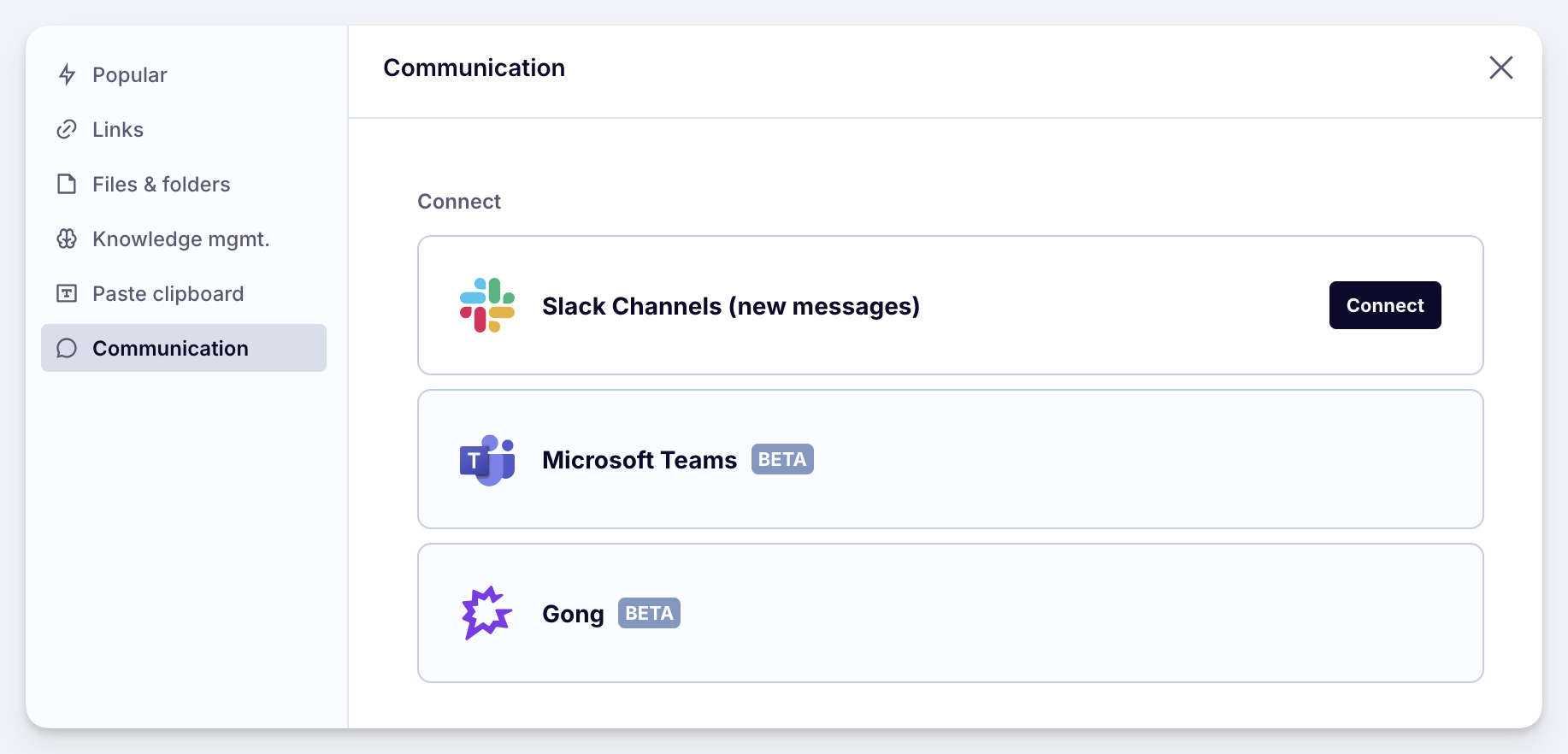
In your AI expert's knowledge base, click on Add sources. Then, in the popup, switch to the Communicates section.
2. Install Scroll's Slack app
You can skip this step if the Slack integration is already connected.
Hover over the Slack Channels box, then click on Connect.
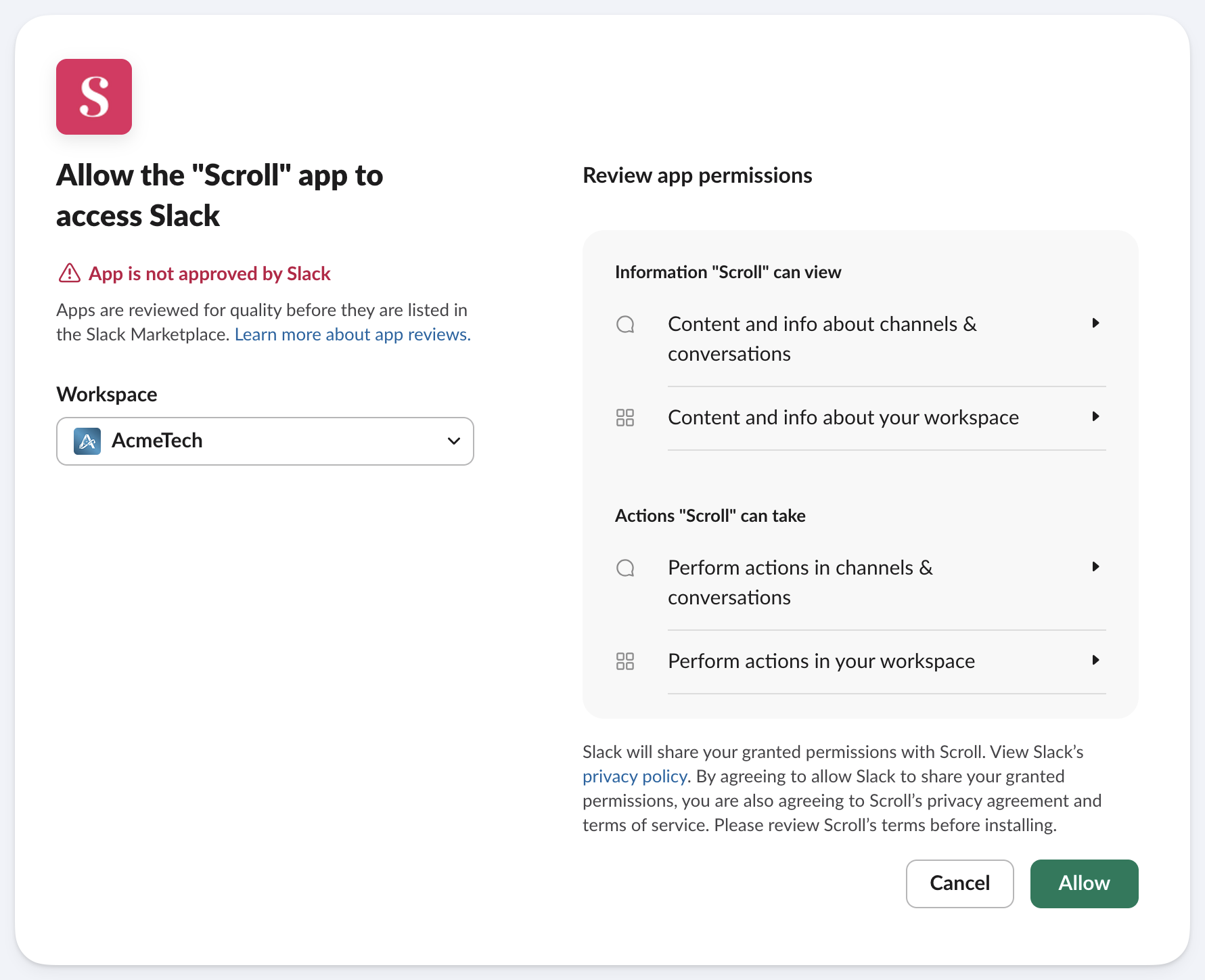
This will take you to the Scroll's app installation screen in Slack. Make sure the correct workspace is selected, then click Allow.
3. Choose channels to sync
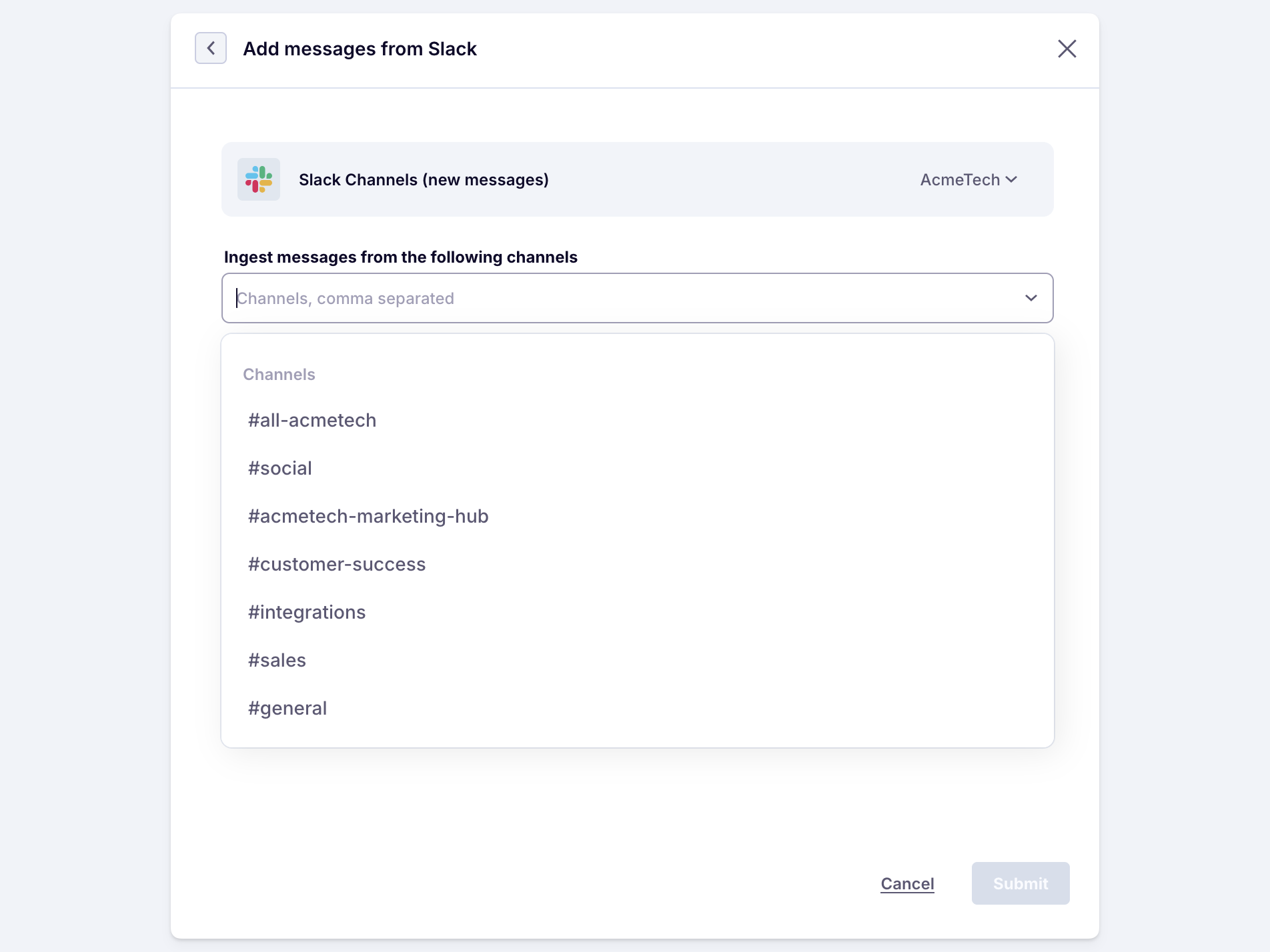
In the input below Ingest messages from the following channels , select the channels to sync.
Filter the list of channels by typing the first few letters of its name.
You can select multiple channels.
4. Submit the batch
Once you click Submit, Scroll starts syncing the chosen channels.
Scroll will create one source per month for each channel. It will fetch the last 15 messages, and then sync new messages every 15 minutes.

Your Slack channels are now syncing. You can preview what the AI sees by clicking on the individual sources.
Historical Slack Data
By default, Scroll starts syncing Slack messages posted after you configure the integration. This is related to Slack’s API limits, which don't allow historical data fetching.
The guide below shows how to import past messages. You only need to do this once.
You will need Slack Administrator access for Steps 1 and 2. If you do not have it, ask your admin to handle these steps and send you the zip file. You can do the rest.
1. Open the Slack export screen
In Slack, click on the workspace name at the top, then go to Tools & settings > Workspace settings :
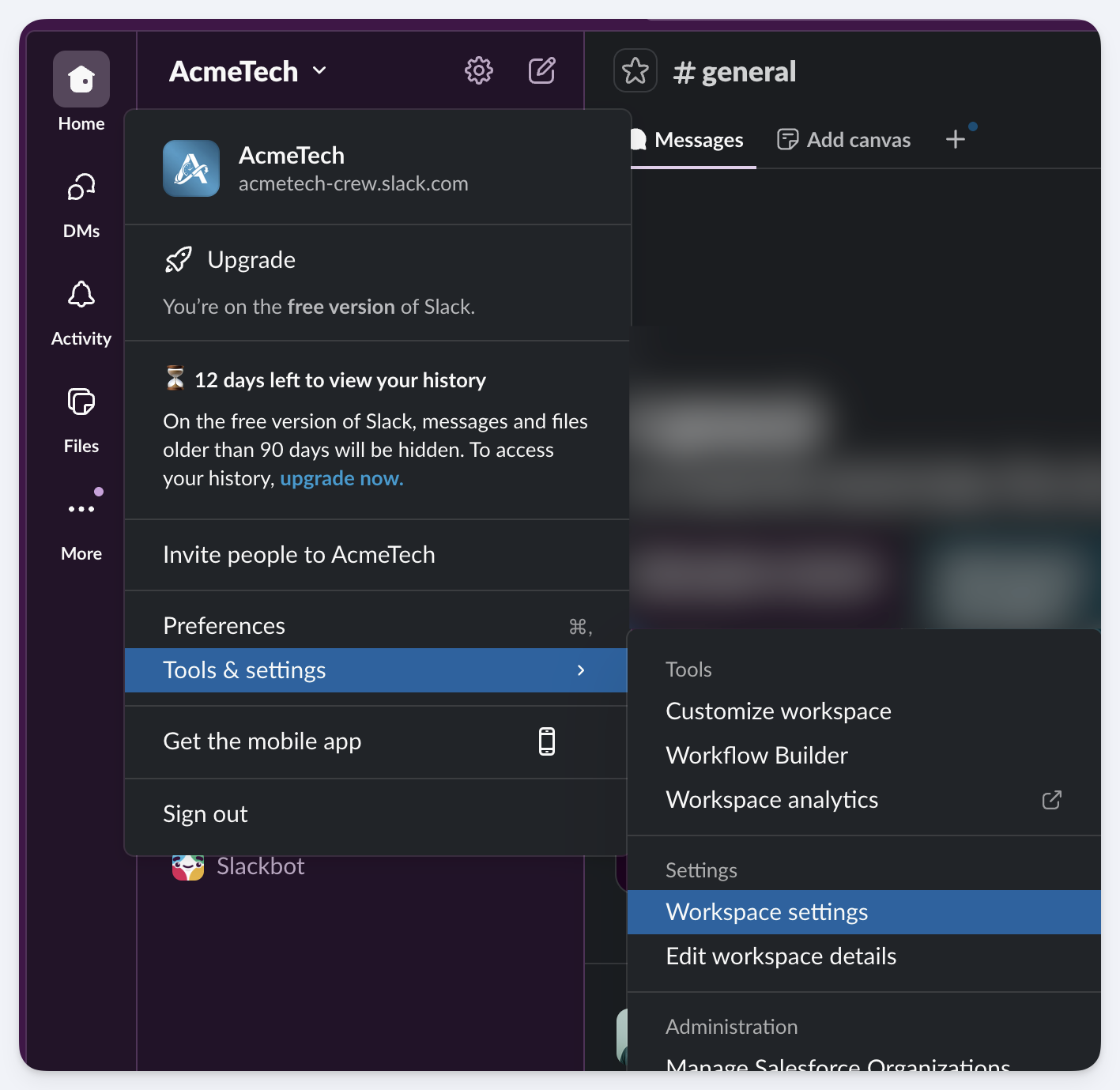
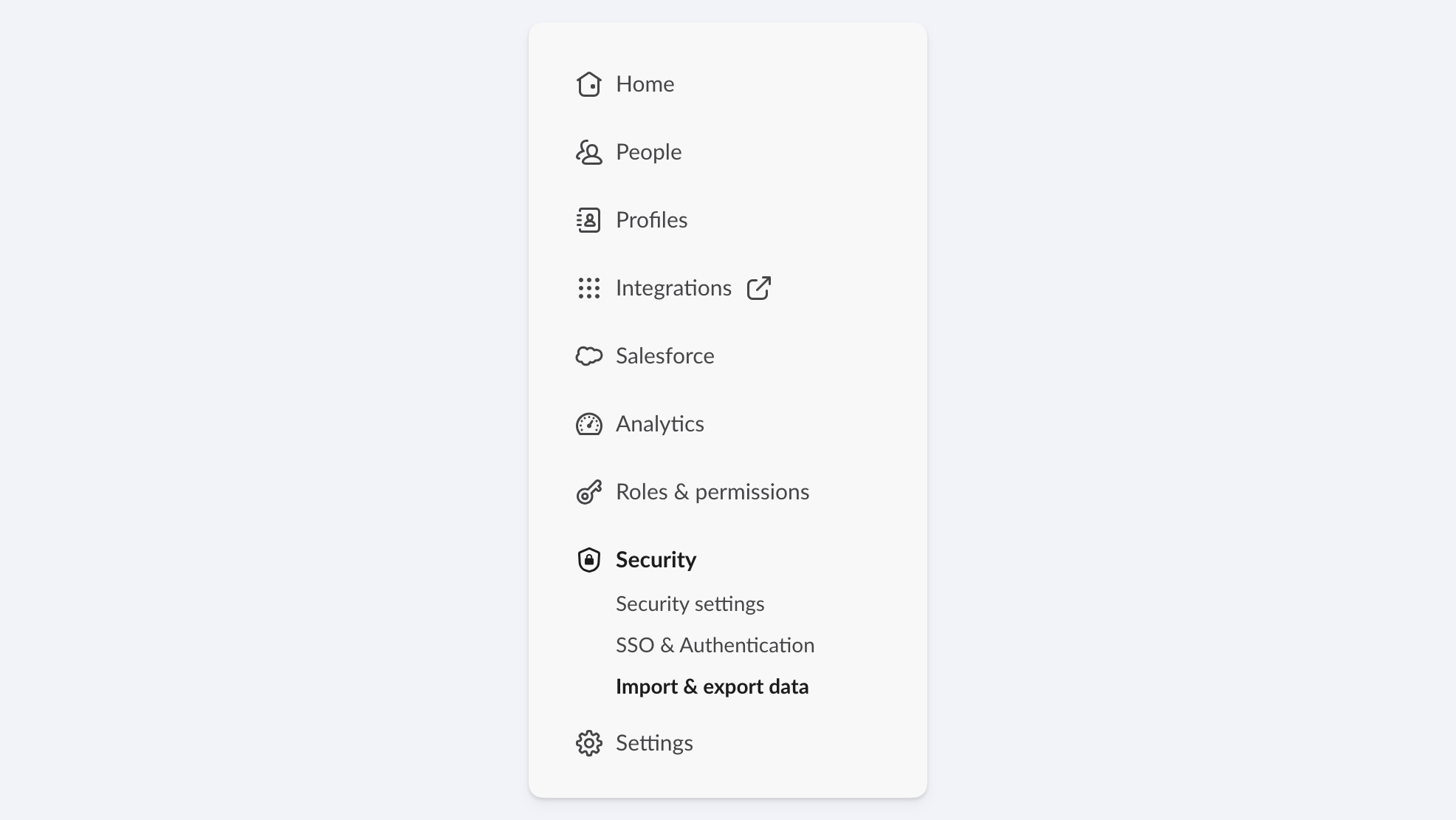
Now navigate to Security> Import & export data and choose the Export tab:
2. Download the Slack history Zip file
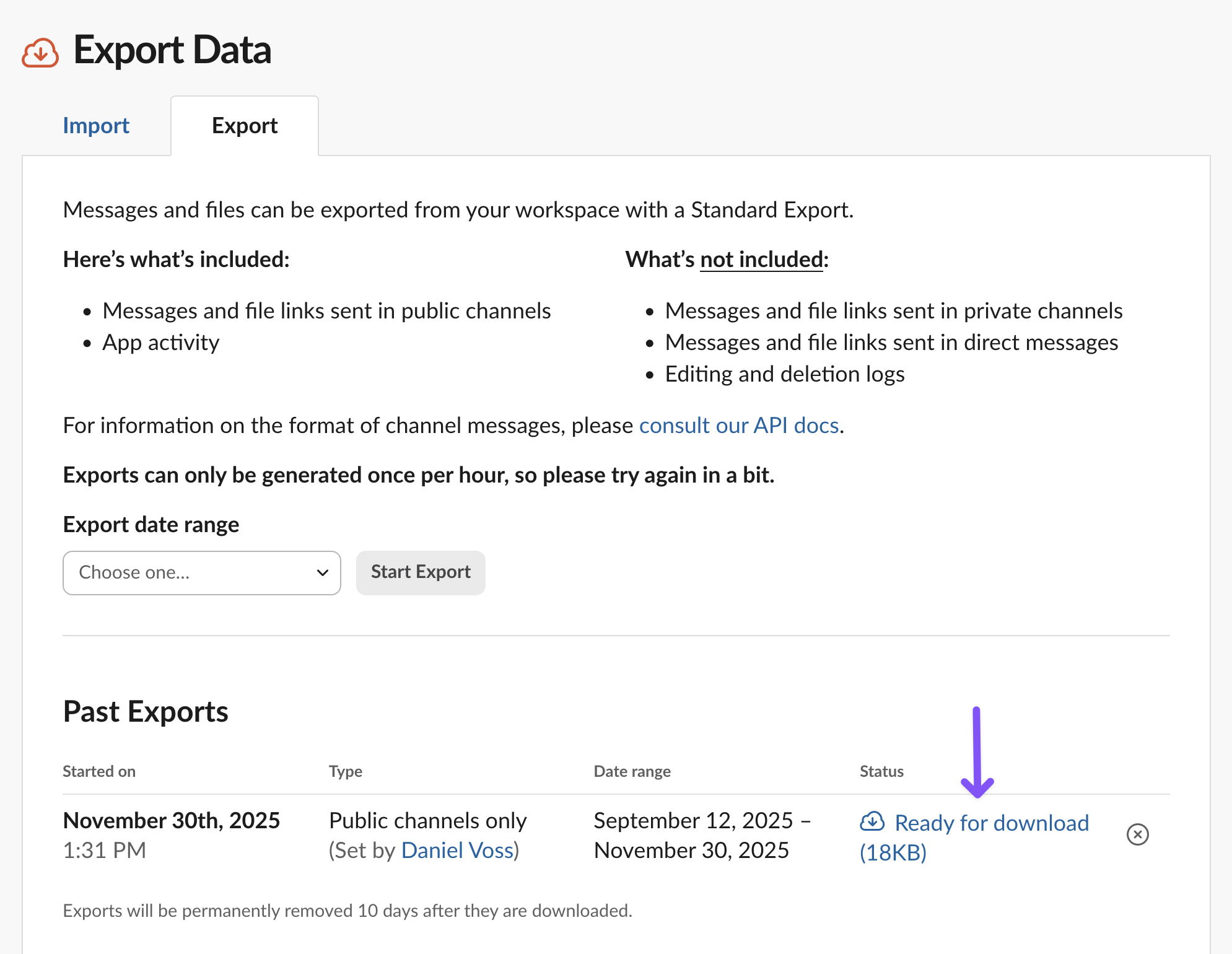
Select the desired date range, then choose Start export. Slack will start converting your historical data to a Zip file. This may take a few minutes.
When the Zip file is ready, download it.
3. Choose your channels
Extract the Zip file. The screenshot is from MacOS, but the file hierarchy is the same on Windows.
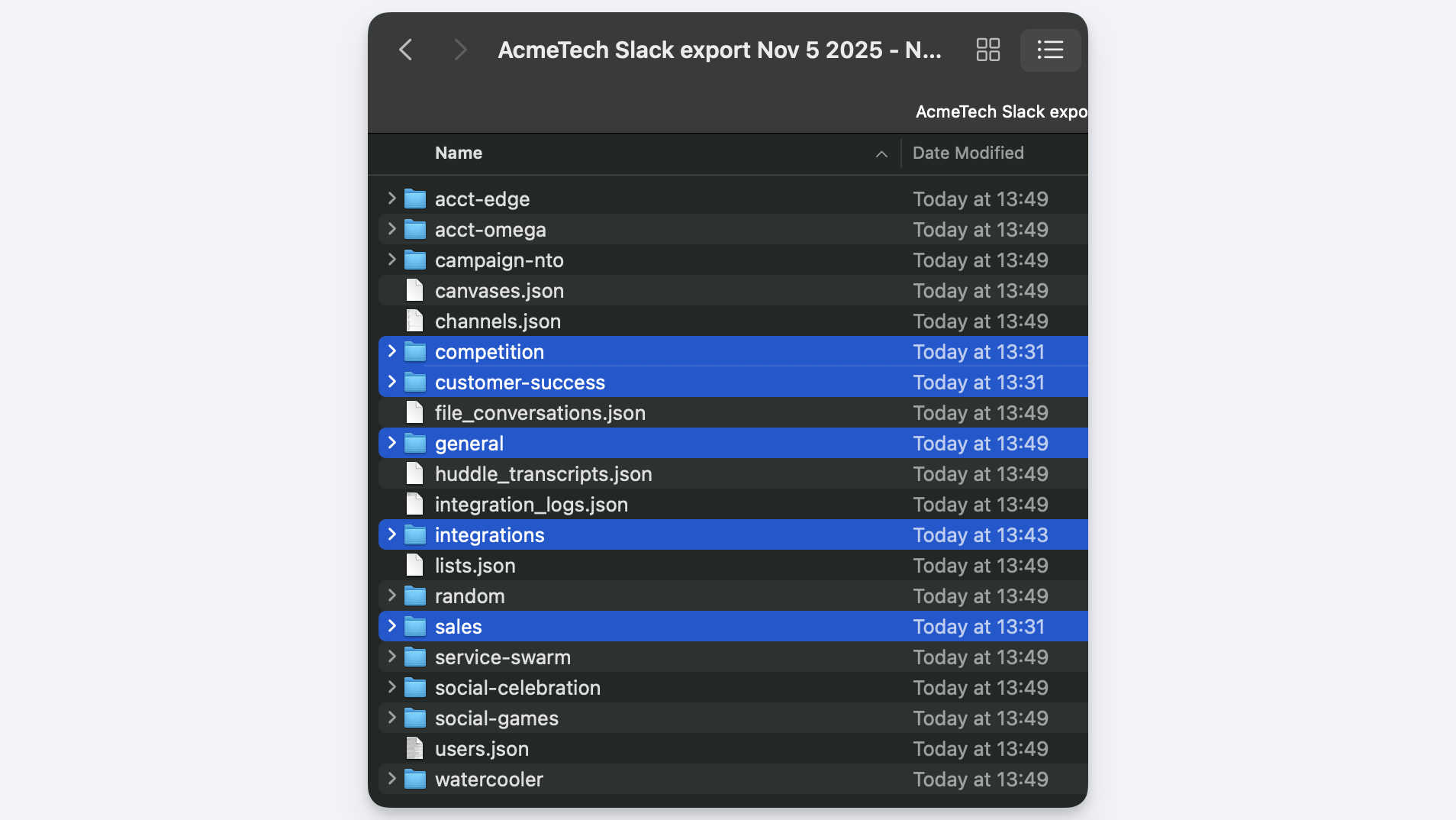
You’ll see a mix of files and folders in the Zip. Some of it is irrelevant metadata.
The folders named after your Slack channels are the ones that contain the actual message history. Decide on the the channels you want to import.
4. Navigate to Add folders
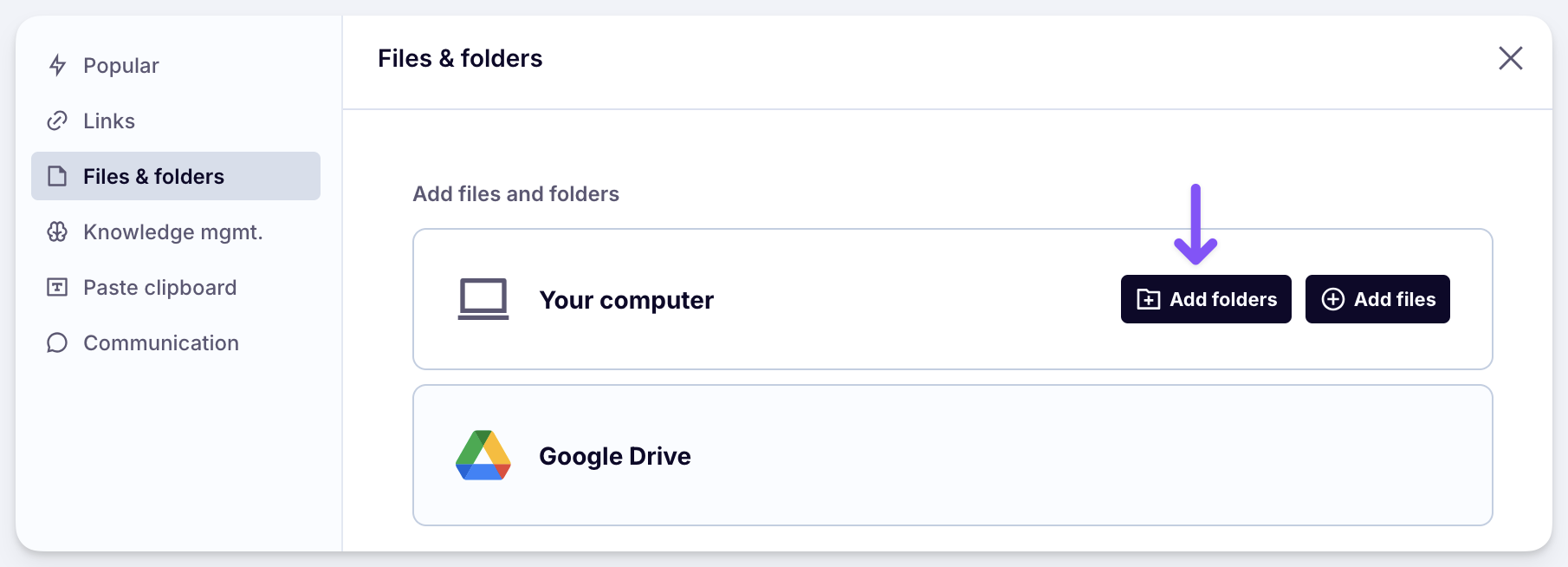
In Scroll, navigate to your expert, then click Add Sources and switch to the Files & folderstab. Choose Your computer > Add folders.
5. Select channel folders
Now navigate in the folder picker to the location where you extracted the Zip. Select one of the channel folders you want to import. Repeat this for each channel you plan to include.
Scroll will list respective files per month of the channel's history.
6. Place in folder and submit
To keep things organized, check the Place in folder option, and name it Slack history.
Click Submit to start uploading the history.
Your Slack history will import within a few minutes. You can then query the AI expert using your historical messages.
FAQ
What information can Scroll import from Slack?
Scroll imports:
Chat messages
Threads
By default, Scroll only ingests new messages (live data), but you can also import historical messages.
Attachments and images are not yet supported. Please let us know if that's something you need at hello@scroll.ai.
Is it secure to connect Slack with Scroll?
Yes. All data is encrypted and protected with strong industry standards.
Scroll experts are highly segregated and can only access data from the specific Slack channels you've connected.
How often does Scroll refresh your synced Slack channels?
Scroll ingests all new messages in synced Slack channels every 15 minutes.
To preview Slack messages in Scroll, open the Knowledge Base and select the relevant Slack source. Scroll creates a separate source for each channel and calendar month. Choose the most recent month to see the latest messages.
How far back does the Slack integration fetch messages?
You can go all the way back to the very first message in each channel. The only limiting factor is your Slack retention policy.
Scroll does not fetch historical messages by default. To import older messages, follow the instructions under Historical Slack Data.