
Dropbox
About
Dropbox is a popular cloud storage service, used to store documents, presentations, spreadsheets and other files. Scroll's integration with Dropbox allows your AI experts to draw insights from these files.
First-time Setup
If you already set up the Ddropbox integration, skip to Adding Files.
1. Locate the Dropbox integration
If you haven't created an AI expert yet, create one from the home screen using the Create an AI Expert button.
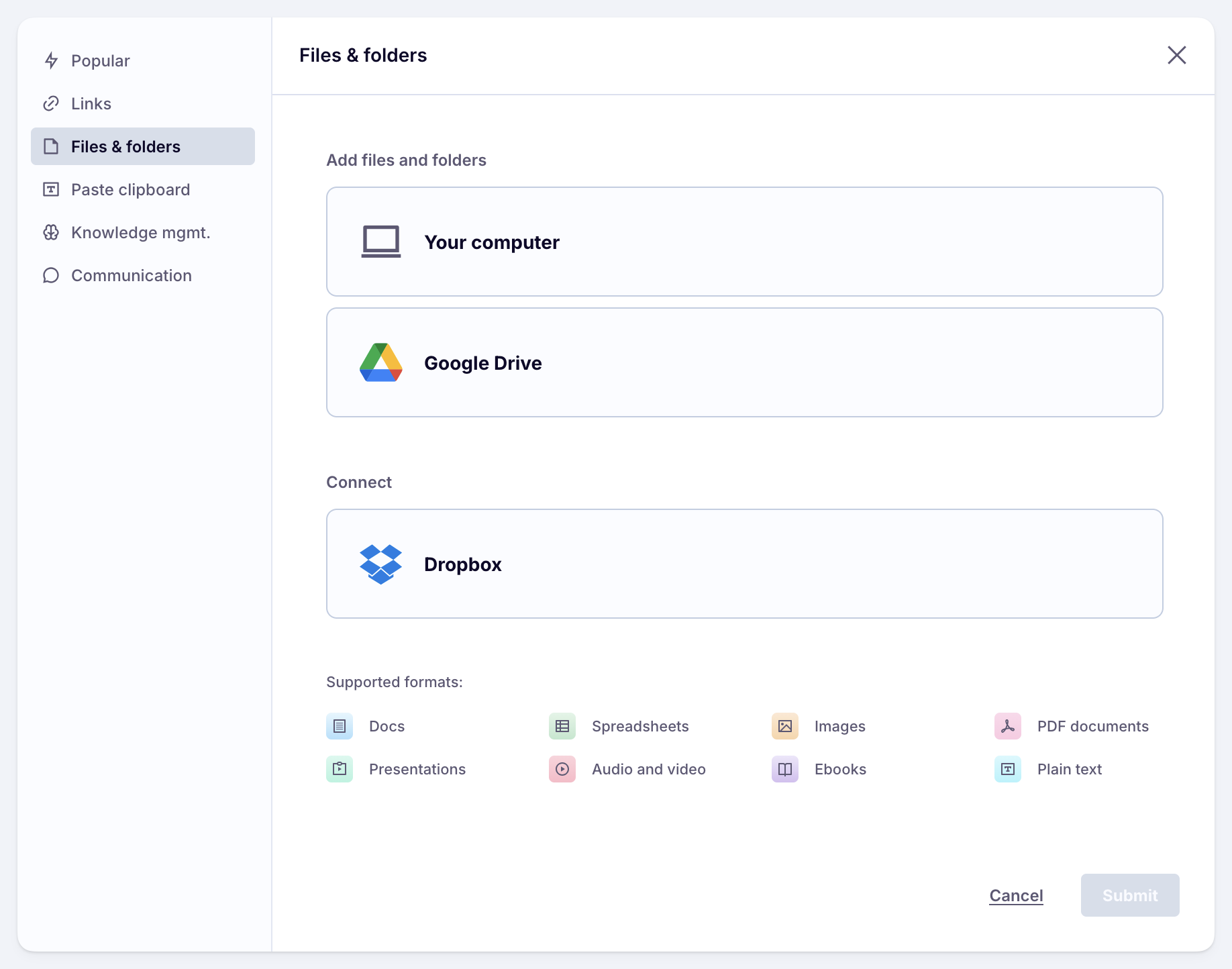
In your AI expert's knowledge base, click on Add sources. Then, in the popup, switch to the Files & folders section.
2. Configure access in Dropbox
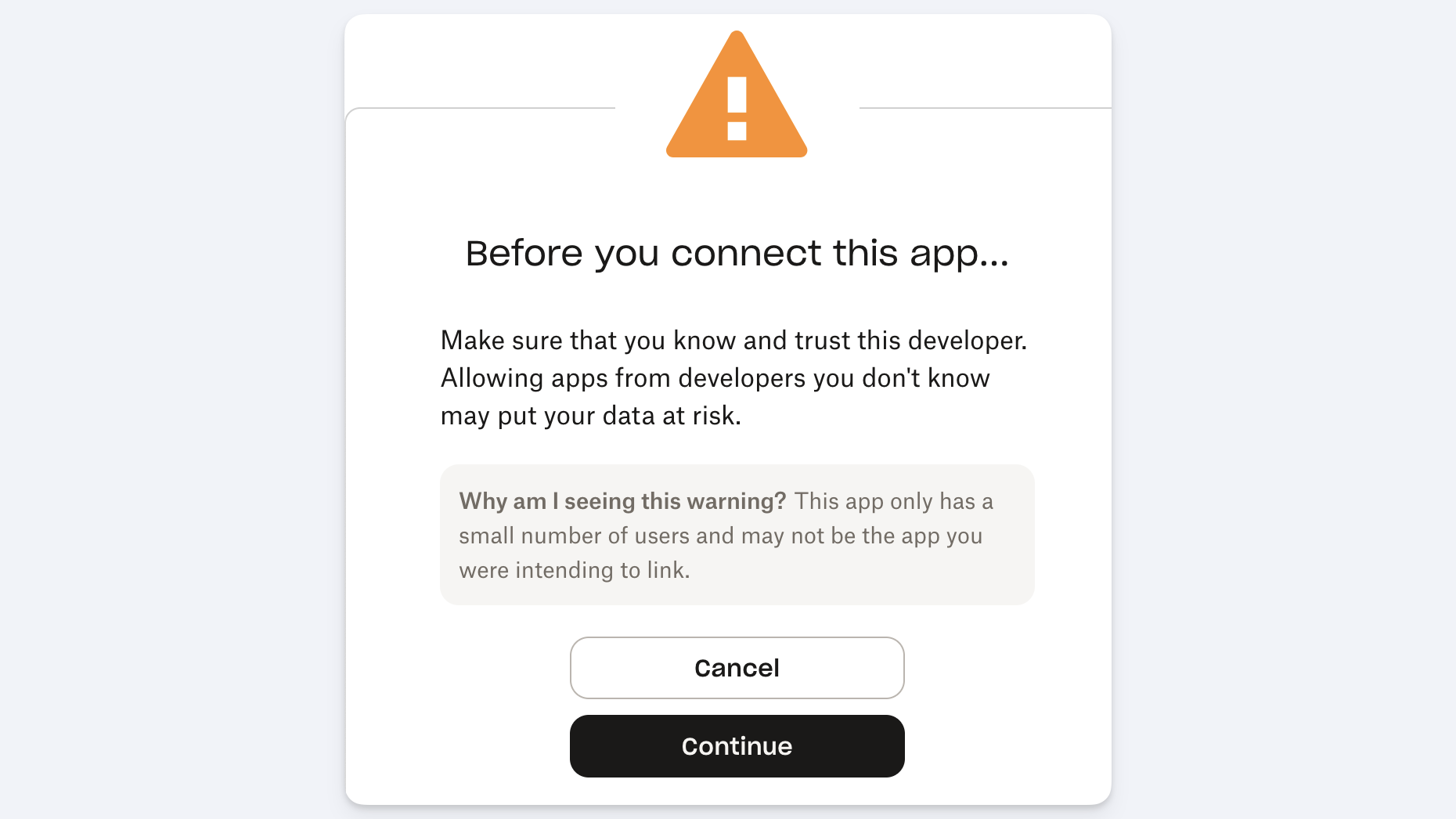
Hover over the Dropbox box, then click on Connect. This will open a Dropbox screen to authorize Scroll's integration. This is a one-time step.
In the first screen, click Continue:
In the second screen, click Allow:
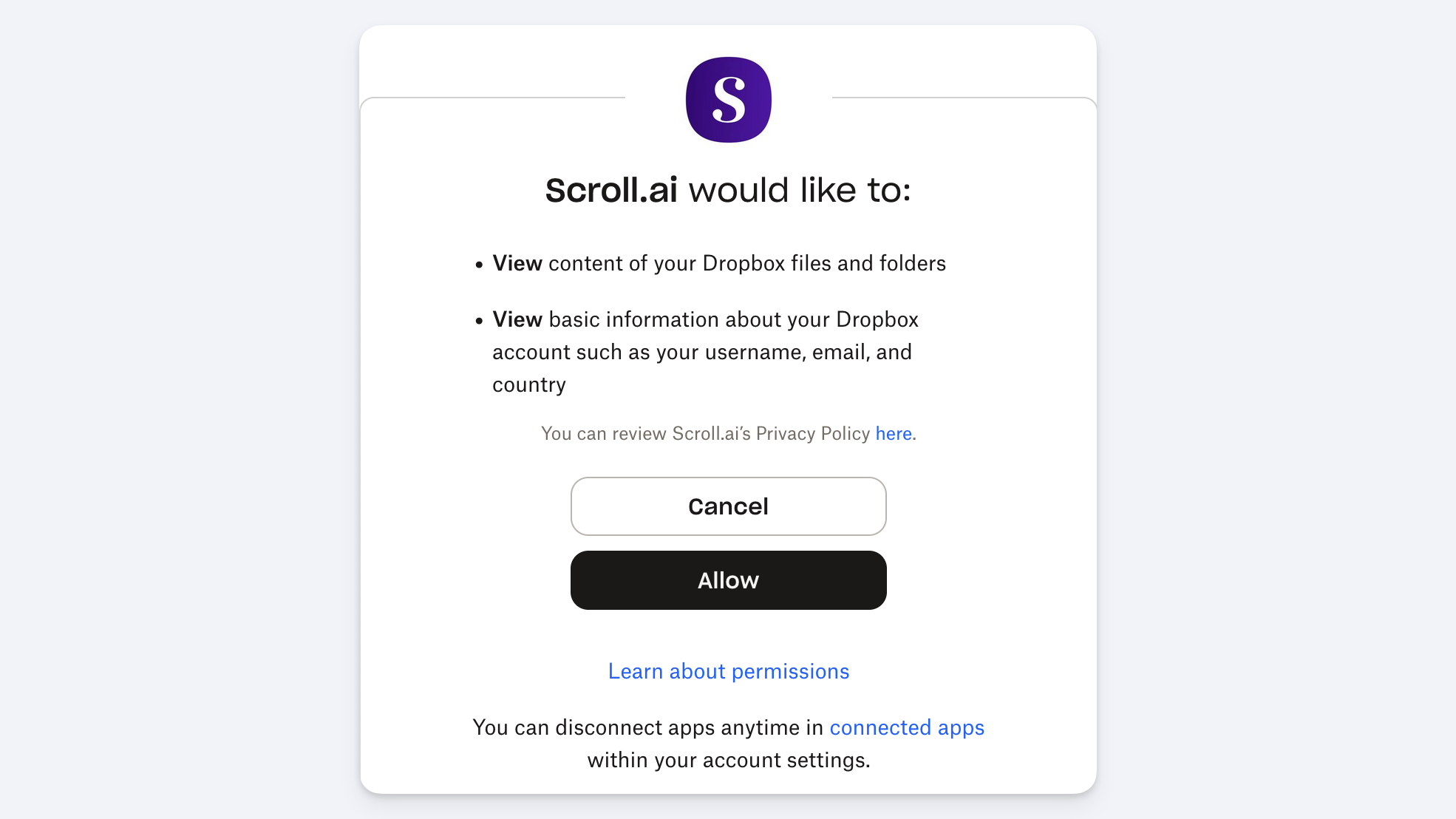
Dropbox is now connected to Scroll.
Adding Files
If you haven't installed the integration yet, go through the Setup section first.
1. Navigate to the Dropbox integration
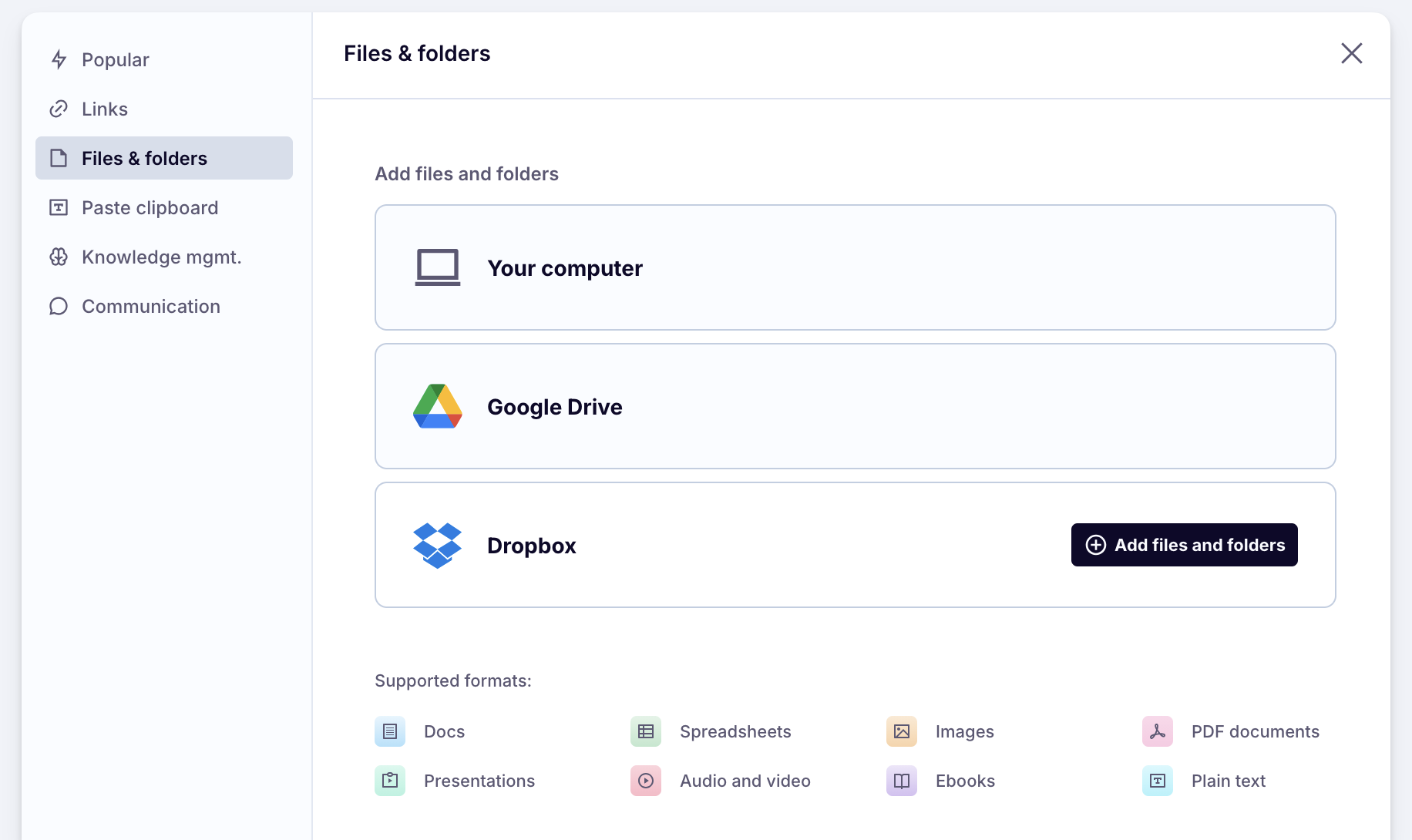
Click Add sources in your expert’s knowledge base, switch to Files & folders and select Add files and folders under Dropbox.
2. Add a folder or page
Where it says Add files and folders, start typing the name of the root folder you'd like to add. Scroll will show you available options.
Select a folder or a specific page. For folders, Scroll will automatically include all files in the folder and its sub-folders.
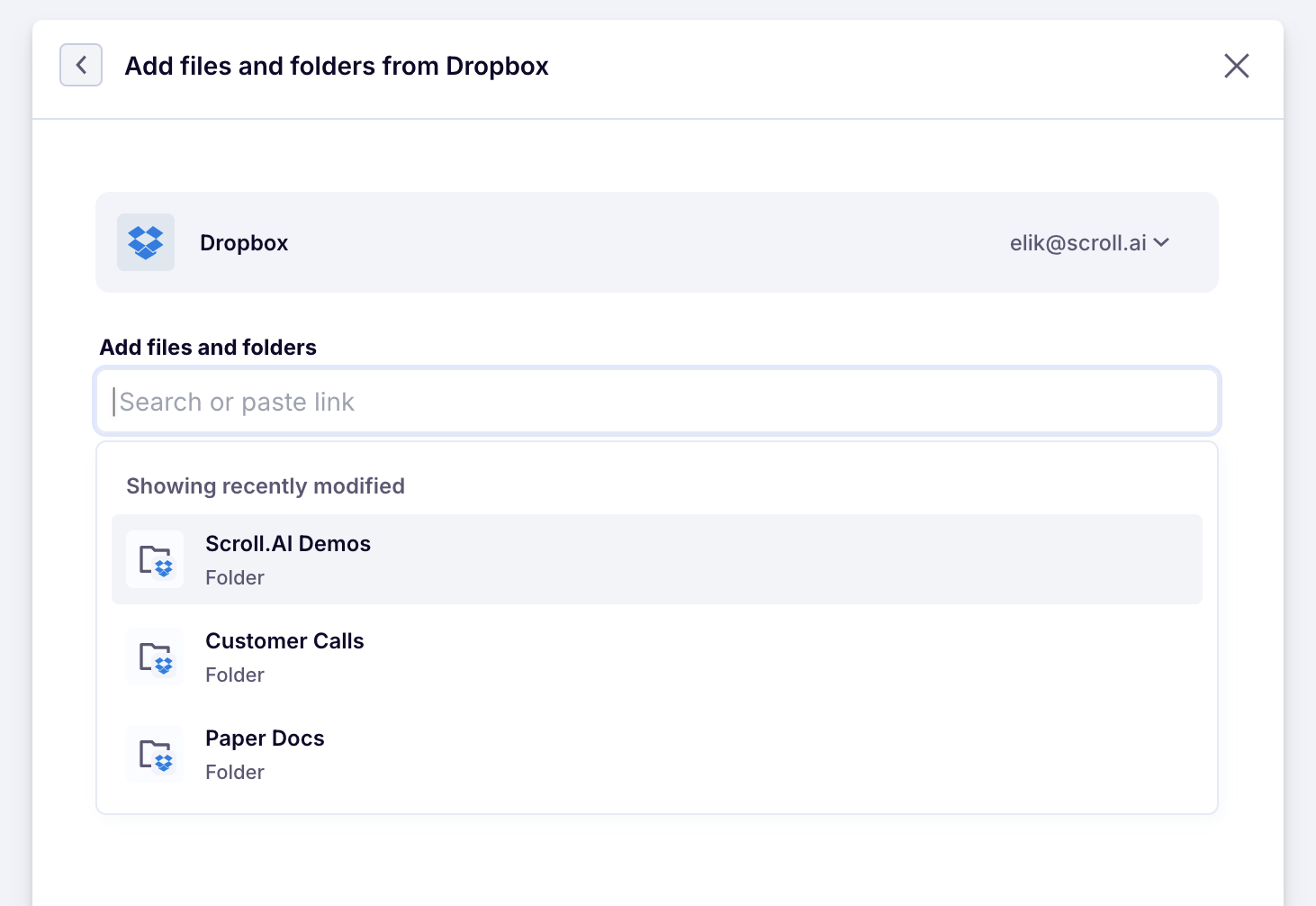
You can also paste a link to a Dropbox file or folder into the same input.
3. Add more items
Optionally add additional items before submitting the batch:
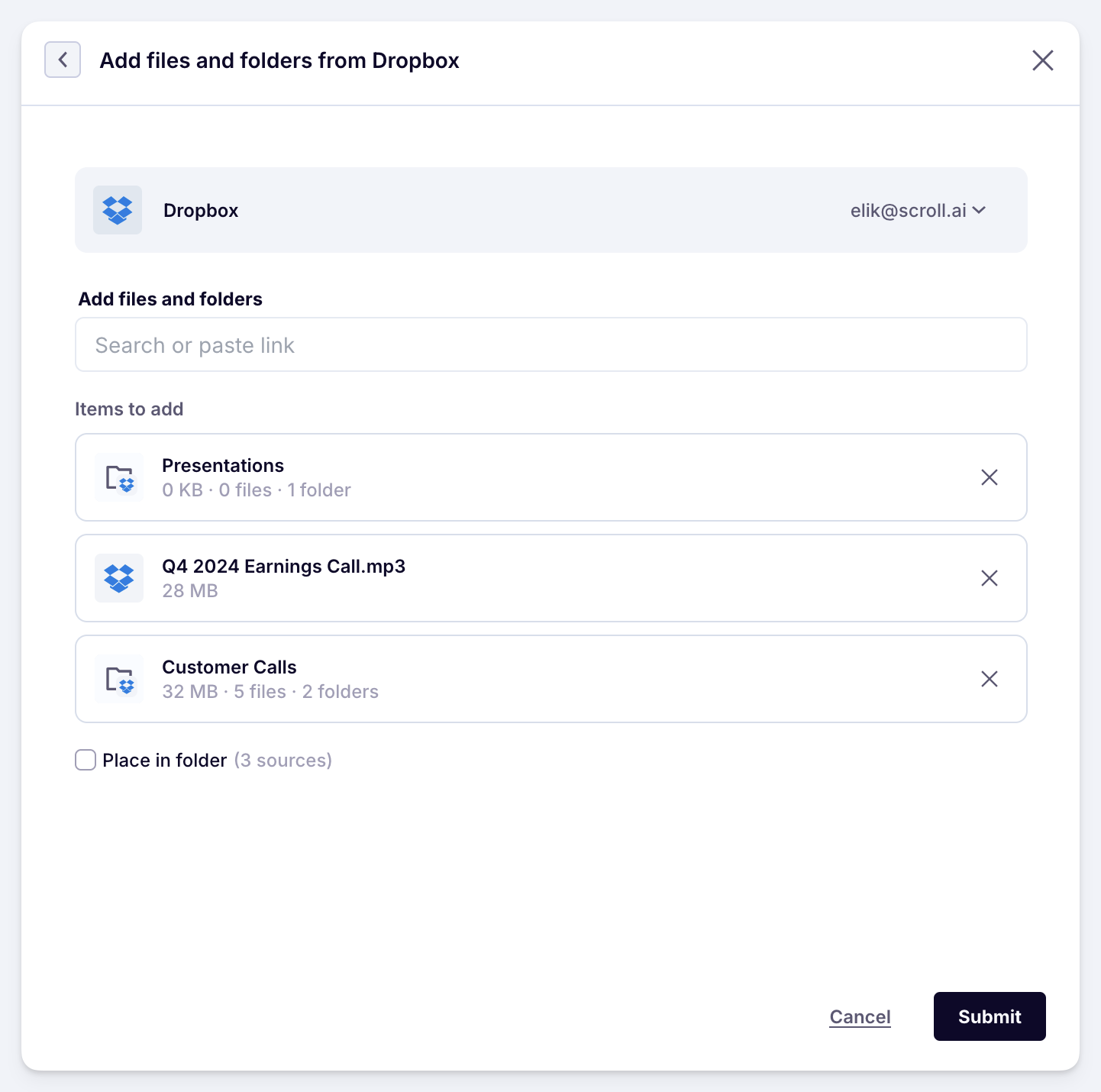
For better organization, Scroll automatically creates a folder in the knowledge base for each Dropbox folder you add. If you select Place in folder, it will use your chosen folder instead.
4. Submit the batch
Once you click Submit, Scroll starts ingesting the files. It analyzes the content to ensure accurate AI results. This may take a couple of minutes.
You will see this notification in the bottom-left while it runs:
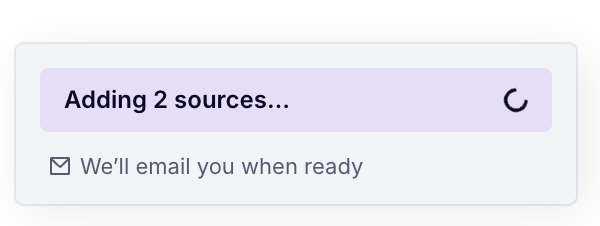
Your Dropbox sources are added! You can preview what the AI sees by clicking on the individual sources.
FAQ
What information can Scroll import from Dropbox?
Scroll imports:
Microsoft Word, Excel and PowerPoint
Audios and videos
PDFs
Image files that contain text
Text files
Scroll doesn't support Dropbox Paper.
Is it secure to connect Dropbox with Scroll?
Yes. All data is encrypted and protected with strong industry standards.
Scroll experts are highly segregated and can only access the specific page hierarchies you configured for them.
How often does Scroll refresh your synced Dropbox sources?
Scroll currently does not refresh your sources. You will need to re-add them if you'd like the expert to be aware of underlying changes.
However, this capability is in development and is coming soon.