
3. Publishing
This is the third guide in the 4-part Getting Started with Scroll series.
Publish Options
Once your AI expert is tested, it's time to let others benefit from its insights.
Scroll offers several publish destinations
Publish Destination | Description |
|---|---|
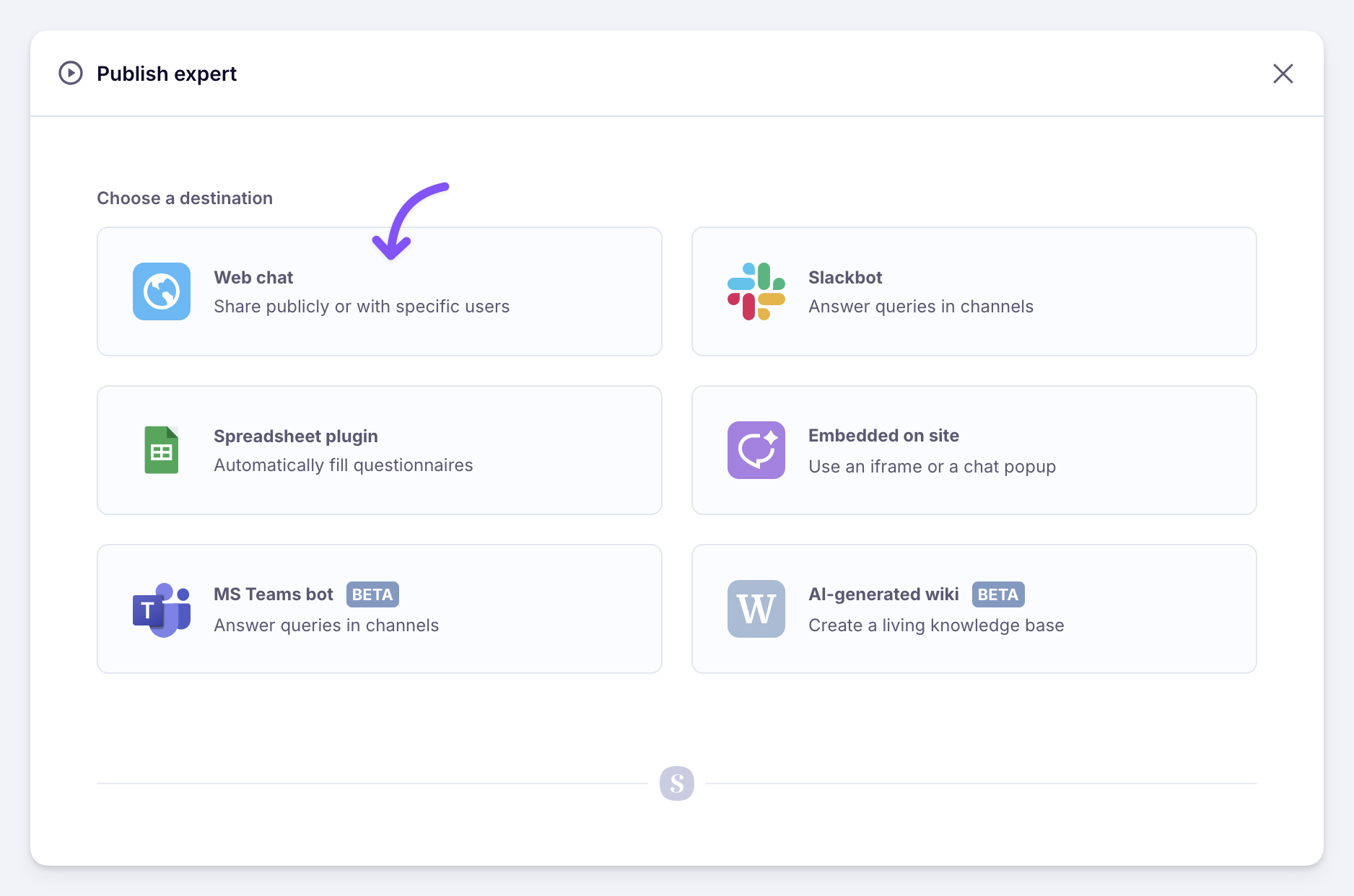
Web Chat | A polished web chat interface, with interactive citations and a chat history for each user. Can be public or restricted by email. |
Slackbot | A bot that answers questions directly in Slack channels. Adds citations at the end of every reply. |
Embedded | A widget you can add to any site so people can chat with the expert. Works as a popup or inline as an iframe. |
Google Sheets | A plugin that helps you answer hundreds of questions in minutes. Ideal for RFPs and security and compliance questionnaires. |
Other destinations in development:
Microsoft Teams
AI-Generated Wiki
API & MCP Server
If you want to beta test any of these, email hello@scroll.ai.
Publish your first Expert
In the Getting Started guide, we'll publish the expert as a Web Chat. It's the simplest, most straight forward publish destination.
1. Choose the destination
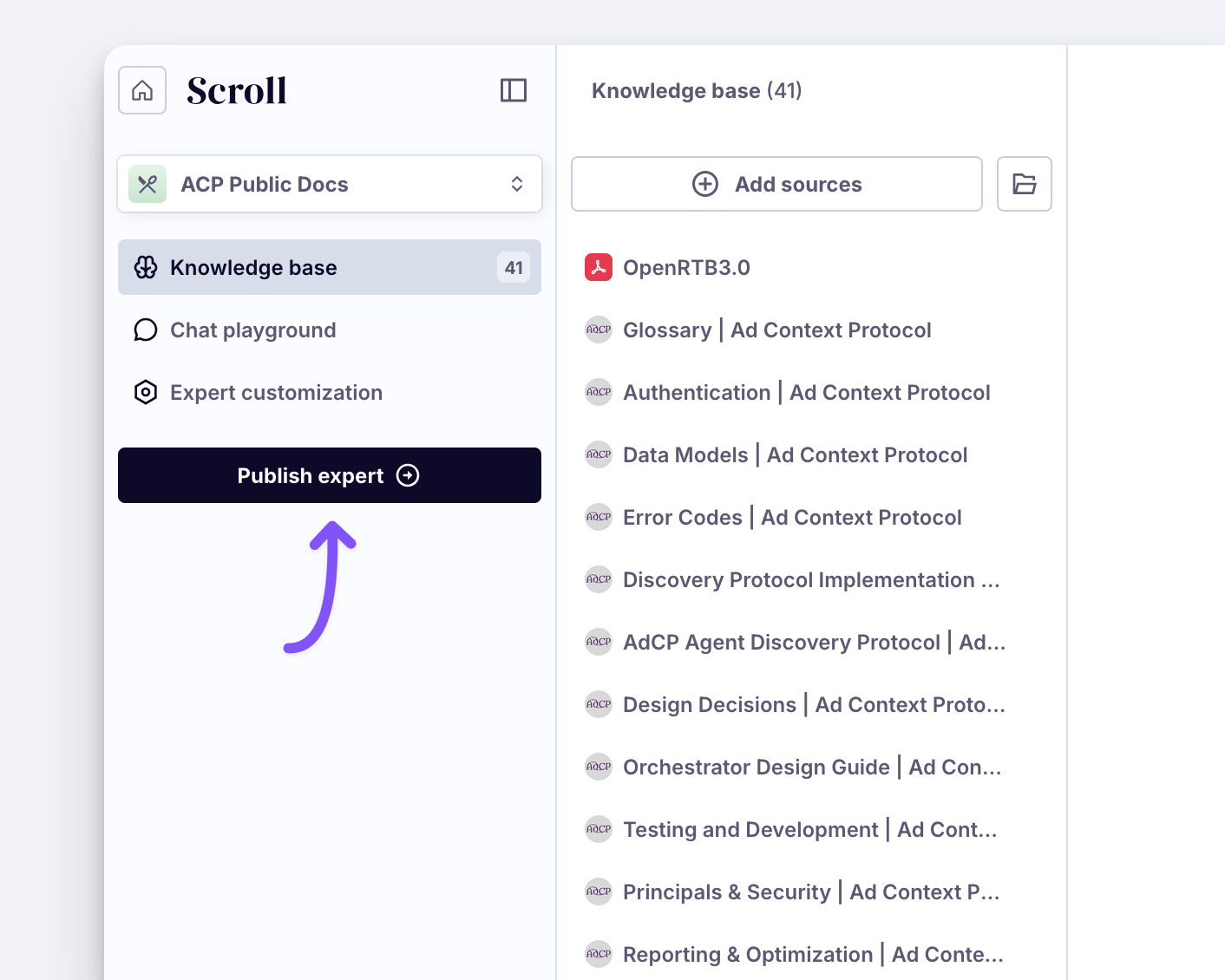
Click on Publish Expert:
Then choose Web Chat in the popup:
2. Configure the destination
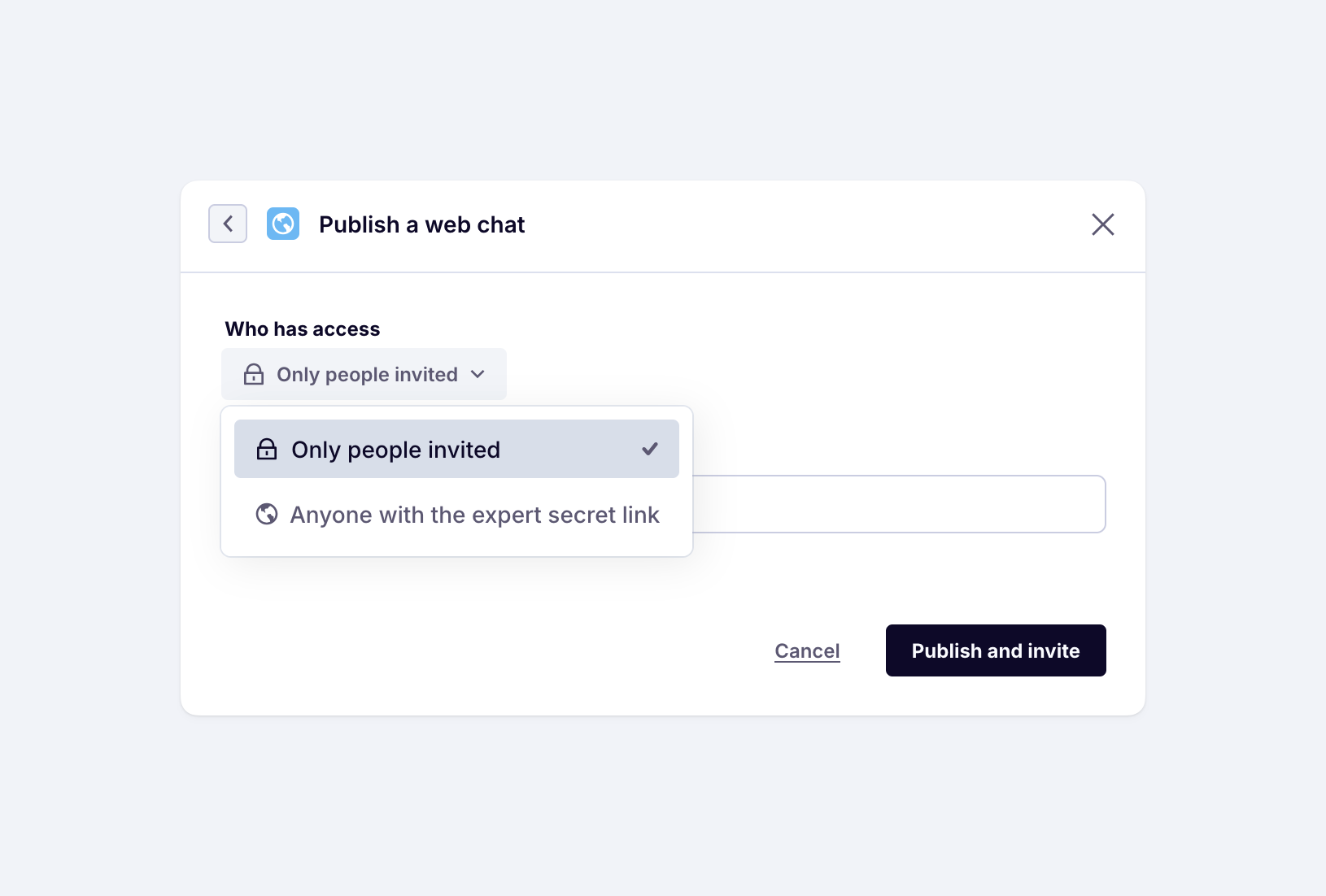
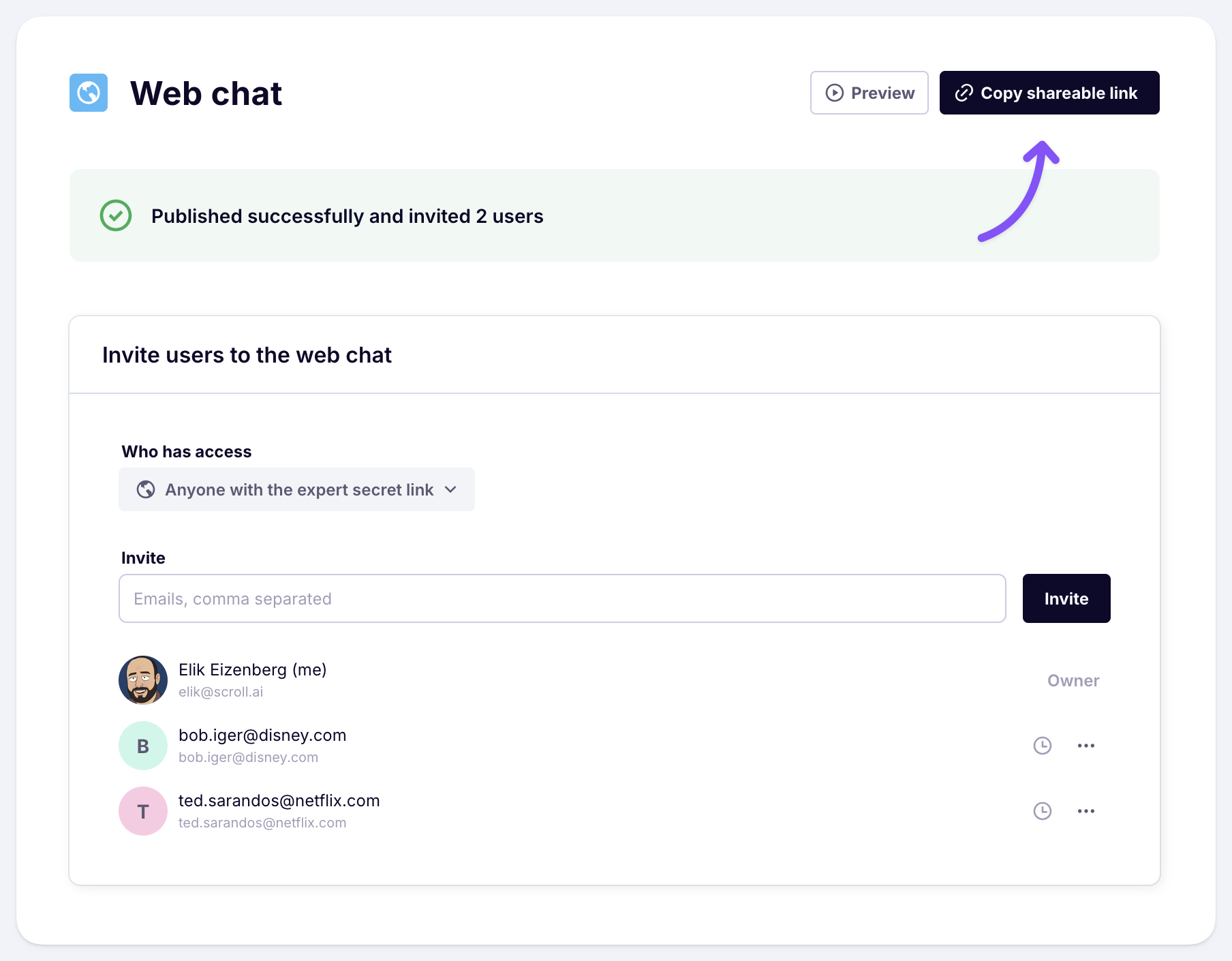
Choose if you'd like to make the expert public, or only share it with specific individuals.
Next, enter email addresses of people you'd like to invite. This is optional for public experts.
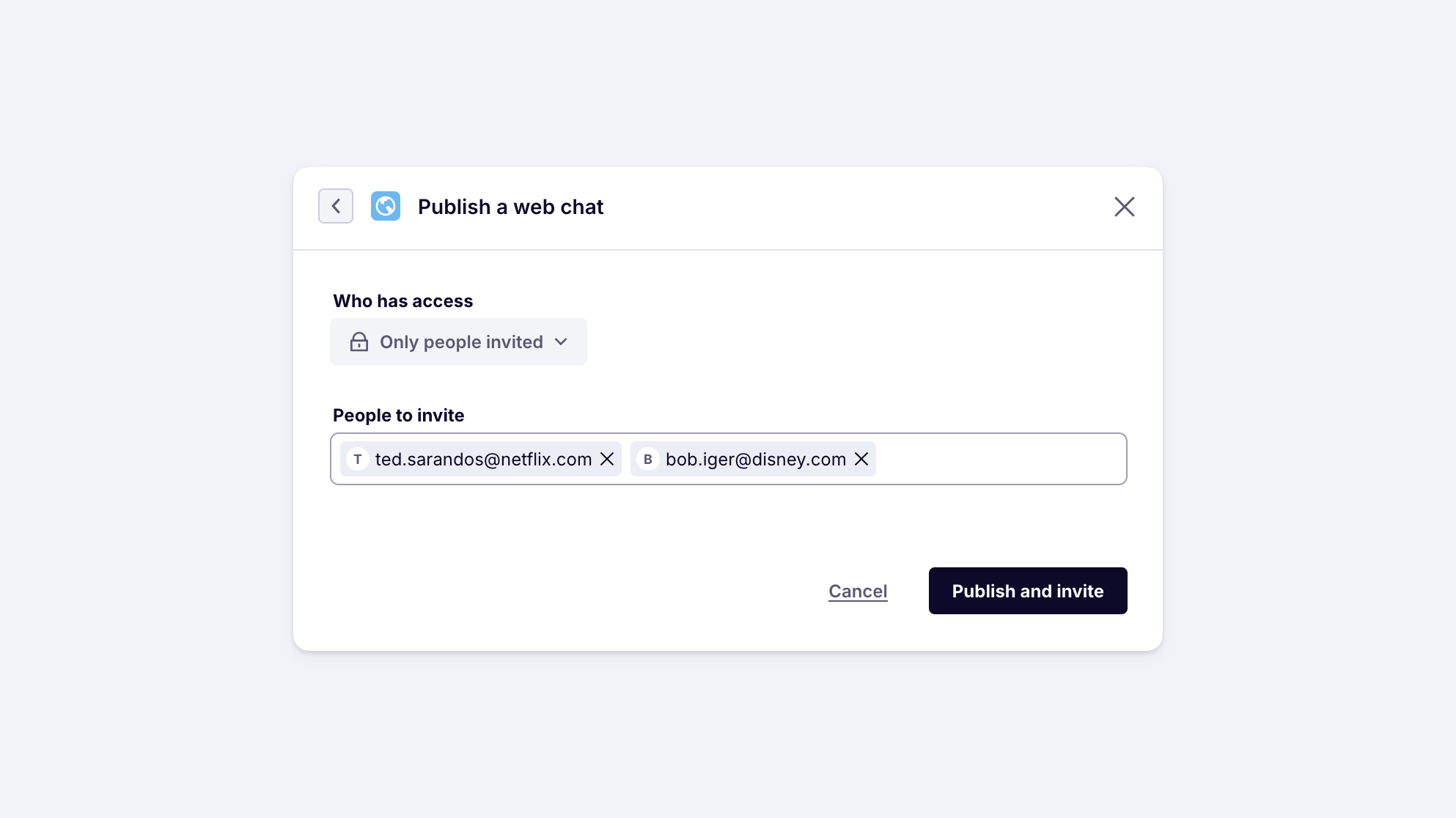
Click Publish and invite.
3. Share via link
Invited people will receive an email invitation.
You can also let people access the expert by sharing a secret link.
If access settings was set to Anyone with a secret link, anyone with the link can access the expert. If it was set to Only people invited, the secret link will only work for people invited first.
To get the secret link, click on Copy shareable link:
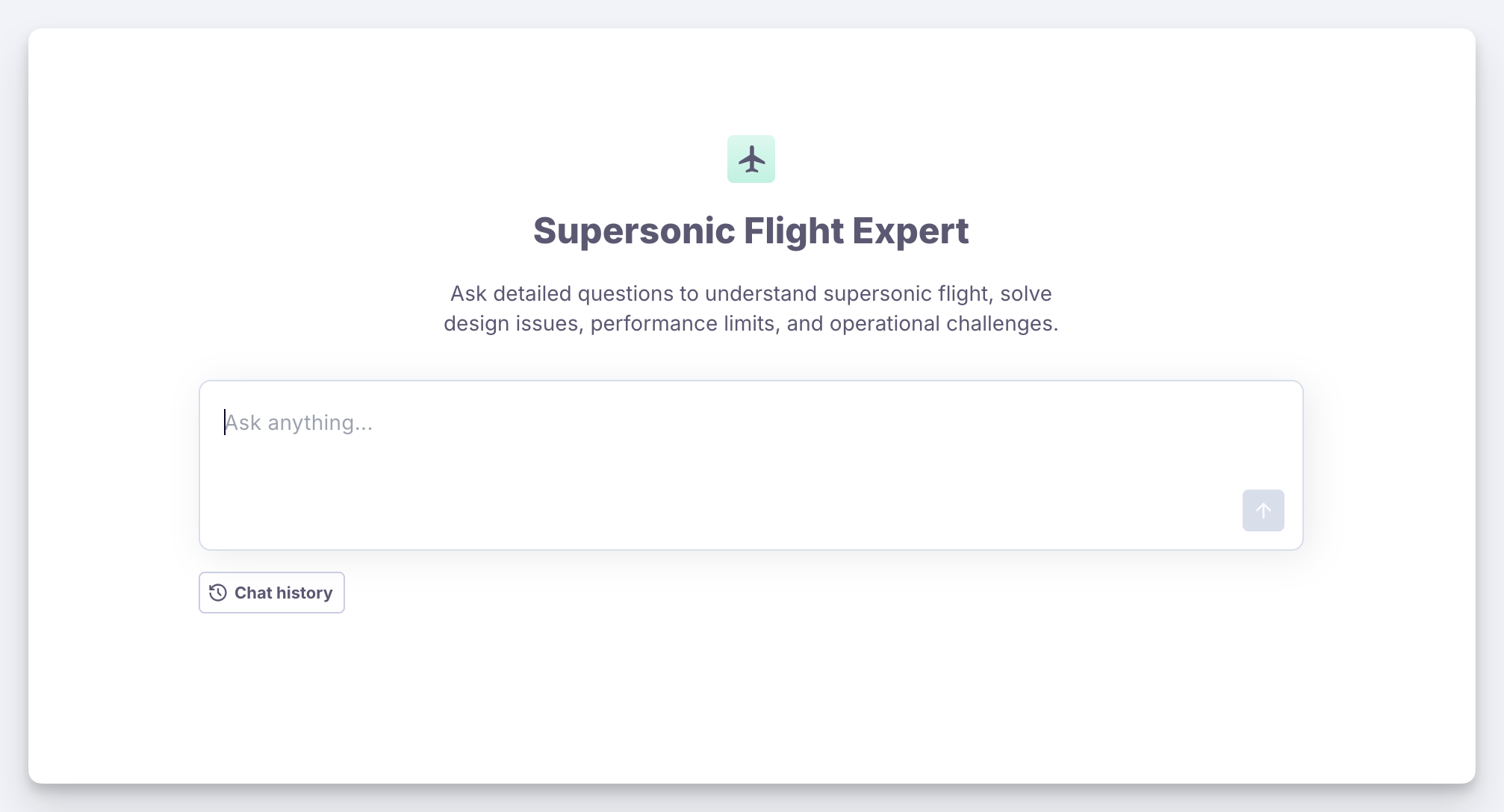
When your users open the link, they will get a polished, easy-to-use chat interface:
Driving usage
"If an AI expert is published but no one uses it, does it really exist?"
Many AI projects fail not because of low value, but because of poor adoption.
Changing habits is hard. Even with a powerful tool at their fingertips, people default to their old ways, like Slacking an architect or spending 30 minutes digging through old presentations.
To succeed with an AI project, you must be deliberate about driving usage. It takes effort, but over time your expert will reach "escape velocity," the point where usage becomes self-sustaining and the ROI becomes undeniable.
Here are our recommended approaches to encourage adoption.
🧑💻 Meet people where they work
Ideally, your AI expert should be integrated as tightly as possible into existing workflows so users don't have to switch contexts.
For example:
Slack: If you have a
#competitionSlack channel where people already ask questions about competitors, publish your AI expert as a Slackbot and assign it to this channel.Documentation: If you have a documentation site (internal or external), place an "Ask anything..." button in a prominent place that opens the expert in a popup.
RFPs: Use the Google Sheets plugin so teams can answer questions in bulk right from within the questionnaire spreadsheet.
🔍 Make it findable
When people do want to use your expert, make it easy for them to find. Don't make them dig through old emails or search Slack histories.
Where to put your link:
📌 Project Tools: Pinned to projects in Jira, Monday, ClickUp or Salesforce.
👤 Bio: Linked directly in your email signature or social media bio.
🌐 Intranet: Featured on the employee portal or internal wiki.
🔖 Bookmark: Ask users to bookmark it immediately.
⭐ Optimize the user experience
A polished user experience is central for habit formation. With AI experts, pay attention to the following:
Clear presentation: Use a concise, descriptive name for the expert. Customize the description so users understand exactly what it can accomplish for them at a glance.
Query speed: Scroll optimizes query time (it is faster than any other agentic search AI). However, if you do experience considerable slowness, please let us know at hello@scroll.ai.
Answer quality: Make sure to test your expert periodically to ensure answers remain high-quality. Revise the sources in your knowledge base if the output needs improvement.
👉 Continue to the next chapter of the Getting Started guide: 4. Customization